Guide
How to open a large log or text file
Your editor says “Not responding”, or refuses the file outright. Here is why, what the built-in tools on macOS, Windows and Linux can do instead, and how to edit and save the file without breaking it.
By the NomiPad team · Updated
Why editors freeze on big files
Most editors read the whole file into memory, then build structures for every line: line breaks, syntax colors, word wrap, folding. For a 5 MB file that is instant. For a 2 GB log it means gigabytes of memory and seconds or minutes of work before the first line appears. Some editors switch features off above a size (VS Code turns off highlighting, wrapping and folding from 20 MB or 300,000 lines), others refuse the file.
The way around it is to not read the whole file: show only the part on screen, and find line breaks in the background. Command-line pagers have always worked that way, and so does NomiPad.
Look inside a huge file on macOS or Linux
These commands come with macOS and every Linux distribution. None of them loads the whole file.
# Page through it (q quits, / searches, G jumps to the end).
# -n skips line numbering, which is slow on huge files.
less -n big.log

# The last 1,000 lines, or keep following new ones as they're written
tail -n 1000 big.log
tail -f big.log

# The first 1,000 lines
head -n 1000 big.log

# Every line containing ERROR, with its line number
grep -n 'ERROR' big.log | less

# Split into files of one million lines each: part_aa, part_ab, …
split -l 1000000 big.log part_
Look inside a huge file on Windows
PowerShell ships with Windows 10 and 11 and reads files as a stream too.
# The last 1,000 lines, or keep following new ones
Get-Content .\big.log -Tail 1000
Get-Content .\big.log -Tail 10 -Wait

# The first 1,000 lines
Get-Content .\big.log -TotalCount 1000

# Every line containing ERROR, with its line number
Select-String -Path .\big.log -Pattern 'ERROR'
When you need to edit and save it
The commands above only read. Editing in place is where things go wrong: a tool that rewrites the file may change its line endings (CRLF to LF), drop a byte-order mark or re-encode accented characters, and your one-line fix turns into a diff of the whole file. Before saving, check what your editor does with:
- Encoding: is a Windows-1252 or UTF-16 file saved back in the same encoding?
- Line endings: does CRLF stay CRLF?
- Byte-order mark: kept if there was one, left out if there wasn’t?
- Changes on disk: if a program is still writing the log, does saving overwrite its new lines without asking?
Open it in NomiPad
NomiPad is a notepad built for exactly this. It maps the file into memory instead of copying it, so the first screen of a 1 GiB log is ready in about a millisecond, then indexes the lines in the background while you already work.
- Open the file: drag it onto the window, use File › Open, or right-click it and choose Open With › NomiPad.
- Jump anywhere with Go to Line (
⌘Lor⌃Gon a Mac,Ctrl+Gon Windows and Linux), even before indexing reaches that line. - Search the whole file with Find (
⌘F/Ctrl+F): plain text or regex, with case and whole-word options. Results stream in pages. - Edit and save as usual. NomiPad writes only the changed part, in the file’s own encoding and line endings, into a temporary file that replaces the original in one step. If another program changed the file after you opened it, NomiPad asks before overwriting.
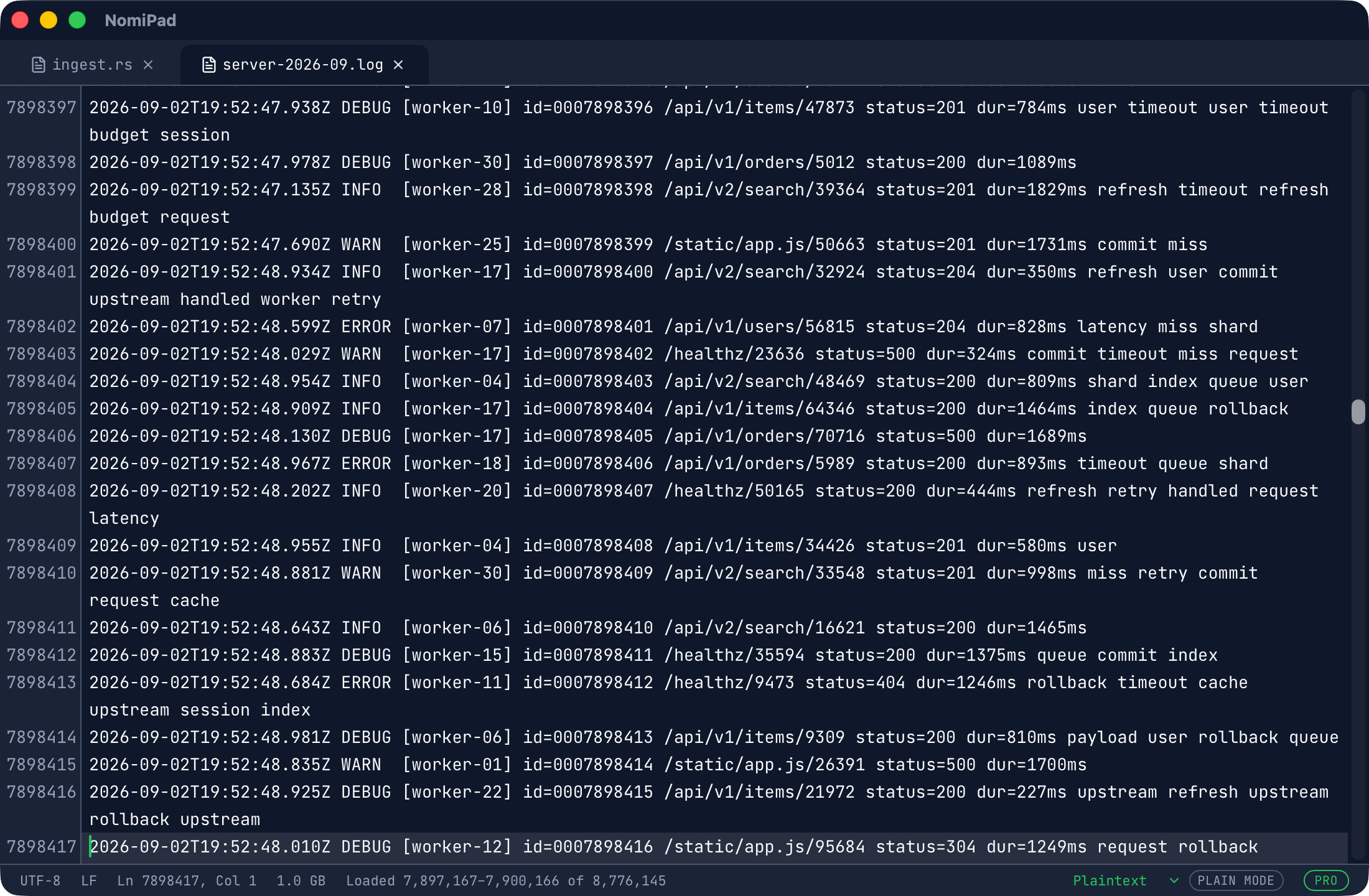
Files above 64 MiB open in Plain mode: live Markdown and Replace All are off there, code keeps its highlighting, and the status bar shows which lines are loaded. The numbers and how we measured them are on the benchmarks page.
Common questions
Is there a size limit?
No fixed one. NomiPad has been measured on 1 GiB files with 8.8 million lines; larger files go through the same path, limited by disk speed on the first pass and by the memory for the line index (about 67 MiB per 8.8 million lines).
Does it work on a file that is still being written?
You can open and read it. If the file changes on disk and you then save, NomiPad stops and asks whether to overwrite or reload.
What about huge CSV or SQL dumps?
They’re text files like any other: they open the same way, and SQL keeps its syntax highlighting past 64 MiB.